

In a remote-first work environment, founders and operations managers often struggle with an invisible drain on productivity: the illusion of deep work. It is incredibly easy to spend 8 hours at a computer jumping between Slack, Jira, and Google Docs, only to end the day with zero tangible output. Most "time trackers" fail to solve this because they rely on manual start/stop timers, which are highly subjective and easily manipulated.
WhatPulse takes a radically different approach. Rather than asking you what you did, it relies on raw desktop telemetry. It silently logs every keystroke, mouse click, application focus, and network packet on your machine to build a mathematical profile of your actual productivity. But does this granular tracking yield actionable business intelligence, or is it just privacy-invasive spyware? In this WhatPulse review, we audit the telemetry dashboard to find out.
1. Quick Summary
2. The TL;DR Verdict
The Lie Detector for Your Workflow
WhatPulse strips away the ambiguity of "I was busy all day." By correlating exact keystroke counts and mouse mileage directly to specific applications, it reveals exactly which tools are driving your output and which are causing distraction. For developers and operations teams looking to optimize their tech stack, this granular, privacy-first telemetry is unmatched.
Download WhatPulse For Free →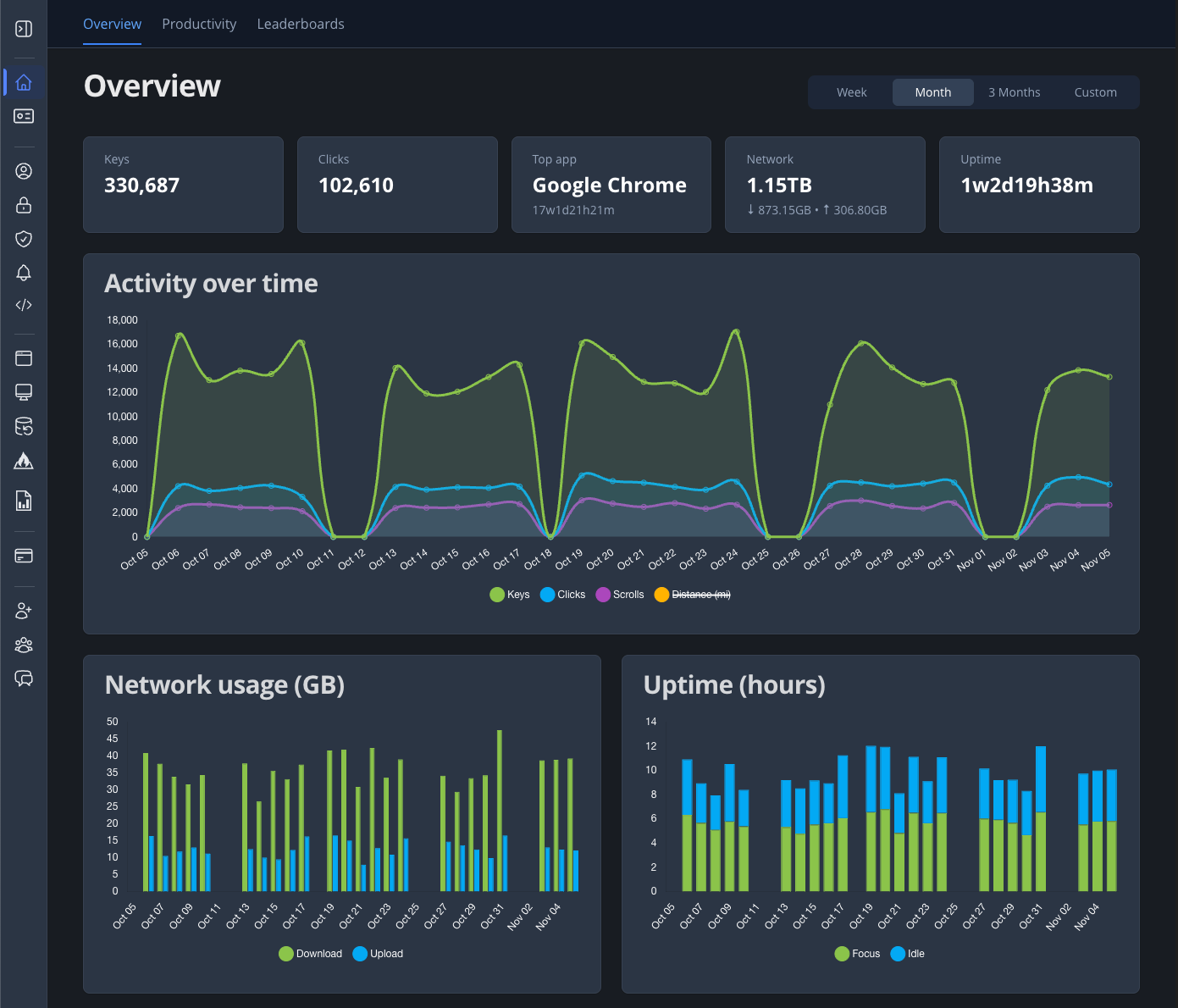
3. What WhatPulse Actually Does
WhatPulse is a lightweight background daemon that operates at the OS level to track your hardware and software engagement.
It measures input (how many times you strike the spacebar, how far your mouse travels in miles), uptime (how long your system is active vs idle), and network usage (which specific apps are uploading or downloading data). It bundles this raw telemetry into a unified dashboard, producing visual heatmaps and historical charts that show you exactly how you interface with your workstation.
4. Core Features
5. The Data: The Cost of Context Switching
Standard time trackers rely on manual inputs. Here is how continuous background telemetry provides a much more accurate picture of a developer's day.
6. The Technical Setup (Privacy & Architecture)
When installing software that tracks every keystroke, the immediate concern is security. WhatPulse is not a keylogger in the malicious sense.
It tracks the *volume and frequency* of key presses, not the chronological sequence. It does not know your password; it just knows you hit the "e" key 400 times today. Furthermore, the client stores data locally first. You control when (or if) it pulses that aggregated metadata to the cloud servers for dashboard syncing. It also strictly ignores incognito and private browsing windows to maintain operational hygiene.
7. Practical Workflow & Timeline
Here is how a founder or developer integrates this tool into their weekly sprint:
Step 1: Background Installation
Download and install the lightweight client on Windows, Mac, or Linux. It runs silently with practically zero CPU overhead.
Step 2: Profile Categorization
Set up Time Tracking Profiles (Premium). Categorize specific apps under "Deep Work" (VS Code, Figma) and "Admin" (Slack, Gmail).
Step 3: The Pulse Sync
At the end of the day or week, the client "pulses" (uploads) your aggregated statistics to your online dashboard.
Step 4: The Weekly Audit
Review your Web Insights and Application Focus charts to pinpoint exactly when you lost momentum and which apps are consuming your bandwidth.
8. Example Use Cases
9. The Real ROI (Optimization vs. Bloat)
Hover over the metrics below to see the baseline operational advantages of desktop telemetry.
Remove the cognitive bias of manual time tracking. If you spent 3 hours in Slack, the math proves it.
The client is incredibly lightweight and will not bottleneck your CPU while compiling code or rendering video.
10. Who WhatPulse Is Best For
- Data-Driven Professionals: If you obsess over tracking your sleep and macros, WhatPulse provides that same level of granular telemetry for your digital workspace.
- Remote Teams: WhatPulse Professional allows team leaders to aggregate usage data across their organization to ensure software licenses aren't going to waste.
- Power Users: Anyone looking to justify the purchase of a complex ergonomic or programmable keyboard based on their actual daily heatmap data.
11. Who Should Avoid WhatPulse
- The Privacy Paranoid: Even though it does not record chronological keystrokes or URLs, the fact that an app is counting your keypresses and monitoring network packets is inherently uncomfortable for some users.
- Casual Users: If you just want a simple stopwatch to bill a client for an hour of freelance design, a standard tool like Toggl is much simpler.
12. Integration & Operational Synergy
13. Feature Focus: Web Insights (Premium)
The newest major feature is Web Insights, restricted to Premium users. Traditionally, WhatPulse only knew you were using "Google Chrome." It couldn't differentiate between researching on StackOverflow vs scrolling Twitter. Web Insights solves this by breaking down browsing time strictly by domain. It gives you a complete picture of your digital workflow without crossing the line into tracking the specific, invasive URLs of the pages you visit.
14. Pricing Realities & Feature Tiers
WhatPulse offers a robust free tier, but the true analytical power is unlocked with the incredibly affordable Premium subscription.
Free Plan
- Install on up to 3 computers
- Basic Keys & Clicks counting
- 7 Days of historical dashboard data
- Local heatmaps
Premium
- Unlimited historical data retention
- Web Insights (Domain tracking)
- Time & Effort Tracking Profiles
- Full CSV Data Exports
15. Best Practices: "The Alpha Plan"
If you want to use this data to actually increase your output, you must execute the Alpha Plan for time management. Stop treating it like a high-score game.
16. How WhatPulse Compares
| Feature | WhatPulse | RescueTime | Time Doctor |
|---|---|---|---|
| Tracking Method | Hardware Telemetry (Keys/Clicks) | Manual Timers / Basic Apps | Corporate Monitoring |
| Network Tracking | Yes (Per app bandwidth) | No | No |
| Privacy Focus | High (User controls the sync) | High | Low (Takes screenshots) |
| Pricing | Very Low (~$30/year) | ~$108/year | High (Per seat) |
17. Limitations & Reality Check
- Data Overload: Without the Premium subscription, you only have access to 7 days of historical dashboard data online. To do meaningful month-over-month trend analysis, upgrading is mandatory.
- The "Busyness" Illusion: Just because you hit the keyboard 40,000 times today does not mean you did good work. High output does not equal high outcome. You must interpret the metrics properly.
18. PROS & CONS
- Provides an objective, undeniable record of your exact workflow.
- Network traffic tracking is invaluable for finding bandwidth hogs.
- Premium tier is incredibly affordable compared to SaaS trackers.
- Respects privacy by avoiding chronological keylogging and screen grabs.
- Free version only holds 7 days of dashboard history.
- Requires manual profile categorization to get the best insights.
19. Frequently Asked Questions
1. Is WhatPulse a keylogger?
No. A malicious keylogger records the exact sequence of keys pressed to steal passwords. WhatPulse only tracks the frequency (e.g., you pressed 'W' 500 times) and stores it as aggregated metadata, not as readable text.
2. Does it track the websites I visit?
Only if you enable the Web Insights feature in the Premium version. Even then, it only tracks the root domain (e.g., youtube.com) to measure time spent, completely ignoring specific URLs, page content, and incognito sessions.
3. Does it take screenshots of my computer?
Absolutely not. Unlike corporate surveillance tools (like Time Doctor), WhatPulse is built for personal productivity and privacy. It has zero capability to capture or view your screen.
4. What operating systems are supported?
The client is highly versatile and natively supports Windows, macOS, and Linux distributions.
5. Can I use it across multiple computers?
Yes. The Free plan allows you to sync data from up to 3 computers into one central dashboard. The Premium plan allows unlimited computers, making it easy to track your desktop and laptop usage together.
6. How does the Network Tracking work?
The client monitors the bandwidth being consumed by your machine and breaks it down per application. This is incredibly useful for finding background apps that are secretly downloading updates and slowing down your video calls.
7. What happens to my data if I don't buy Premium?
The client continues to count your totals indefinitely, but your online dashboard will only display the historical breakdown (charts and graphs) for the last 7 days.
8. Can I export my data?
Yes. Premium users can export their entire history of keyboard, mouse, network, and uptime telemetry into clean CSV files for custom analysis in Excel or BI tools.
20. Final Verdict
In a world where remote workers are constantly balancing deep work with digital distractions, maintaining operational discipline is harder than ever. Relying on "gut feeling" to measure your productivity is a flawed strategy.
WhatPulse provides the mathematical truth of your day. By tracking the exact hardware and software inputs of your workflow, it reveals exactly where your time is being optimized and where it is being wasted. At roughly $30 a year for the Premium version, it is one of the highest ROI investments a developer, founder, or power user can make to reclaim control over their focus.
Download the Telemetry Client Today →