
If you are running a remote or hybrid team, operational blindness is your biggest liability. Relying on your employees to manually log their hours into a basic spreadsheet guarantees two things: inaccurate client billing, and a complete inability to spot which apps and workflows are secretly destroying your team's productivity.
DeskTime is an automated time tracking and workforce management platform designed to replace the honor system with hard data. It runs silently in the background, logging active app usage, idle time, and project focus without requiring employees to remember to click "start." But does granular tracking scale accountability, or does it just foster an environment of corporate micromanagement? In this DeskTime review, we audit their telemetry engine to find out.
1. Quick Summary
2. The TL;DR Verdict
The End of Time Blindness
DeskTime solves the biggest problem with remote work: ambiguous output. By automatically tracking exact application usage and documenting exactly how much time is spent on specific URLs or client projects, it provides operations managers with undeniable proof of work. It eliminates payroll disputes and provides the structural data needed to optimize remote team performance.
Start Tracking Time Automatically →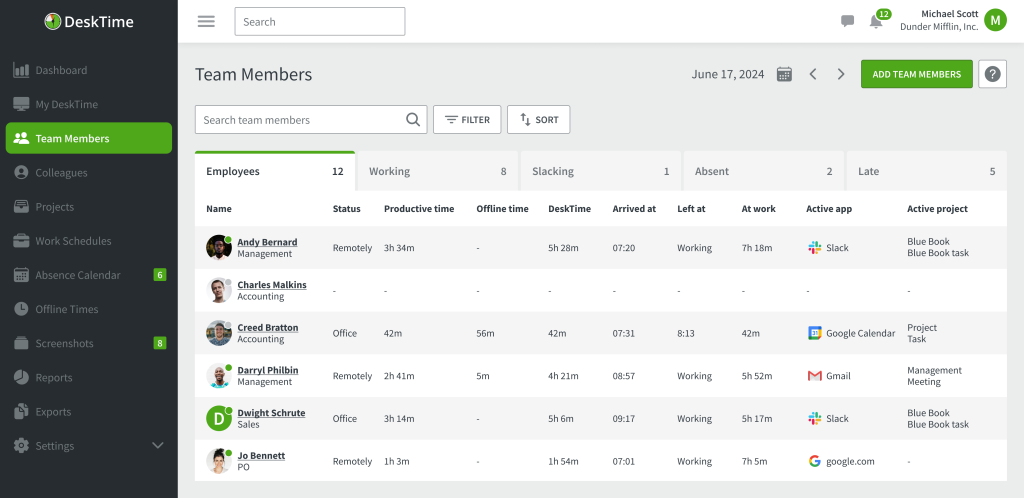
3. What DeskTime Actually Does
Unlike manual timers where an employee clicks a button and then opens YouTube for an hour, DeskTime enforces accuracy through OS-level telemetry.
Once installed on an employee's machine, it runs quietly in the background. It measures active time versus idle time by monitoring mouse and keyboard activity. Crucially, it categorizes productivity. If a developer has VS Code open, DeskTime logs it as "Productive" time. If they switch to Facebook, it logs it as "Unproductive" time. Managers get a bird's-eye view dashboard detailing exactly how many hours were genuinely worked, broken down by application and specific project tasks.
4. Core Features
5. The Data: The Cost of Inaccurate Billing
If you bill clients hourly, relying on your team's memory to log their hours on Friday afternoon is costing your agency thousands of dollars in untracked micro-tasks.
6. The Technical Setup (Installation & Privacy)
Deploying tracking software requires clear boundaries to maintain employee trust. DeskTime balances operational oversight with privacy features.
The desktop client (Windows, Mac, Linux) requires simple installation. Once active, the organization admin configures which apps are deemed "productive" for their specific company. Crucially, employees have access to a Private Time button. If they need to check personal banking or pay a bill during their lunch break, they toggle Private Time, and DeskTime immediately halts all tracking and telemetry until it is toggled back off, ensuring personal data is never sent to the admin dashboard.
7. Practical Workflow & Timeline
Here is what the integration process looks like for an operations manager:
Step 1: Deployment & Roles
Invite employees via email. Assign roles (Admin, User) and define your company's core working hours and shift schedules.
Step 2: Integration Hookup
Connect DeskTime directly to Jira, Asana, or GitLab. This allows developers to track their active time directly against specific engineering tickets.
Step 3: Productivity Categorization
Spend the first week categorizing the software your team uses. Mark 'Figma' as productive for designers, and 'Salesforce' as productive for sales reps.
Step 4: Automated Reporting
Generate weekly automated reports detailing exact arrival times, total productive hours, and project-based breakdowns to send directly to your payroll or invoicing department.
8. Example Use Cases
9. The Real ROI (Accuracy vs. Admin)
Hover over the metrics below to see the baseline operational advantages of automated tracking.
When a client questions a 20-hour bill, you can provide an exact, itemized breakdown of the applications and documents worked on.
Eliminate the Friday scramble. You know exactly who worked their required 40 hours and who was chronically idle.
10. Who DeskTime Is Best For
- Remote Agencies: If your team works asynchronously across different time zones, DeskTime provides asynchronous accountability without requiring constant Slack check-ins.
- Project Managers: The ability to track time directly against specific projects and tasks ensures that client budgets are respected and scope creep is identified early.
- HR Departments: The built-in absence calendar and shift scheduling tools allow HR to manage vacations and sick days in the exact same platform they use for payroll hours.
11. Who Should Avoid DeskTime
- Strictly Outcome-Based Teams: If you run a high-level executive team where you literally only care if the quarterly KPI is hit, tracking minute-by-minute app usage is unnecessary micromanagement.
- Field Service Workers: If your employees spend 80% of their day away from a computer (e.g., plumbers, real estate agents), desktop telemetry will not capture their actual working hours.
12. Integration & Operational Synergy
13. Feature Focus: Optional Screenshots
For high-risk environments or teams utilizing overseas freelancers, relying purely on app-tracking isn't always enough (an employee could simply leave a Word document open to appear busy). DeskTime’s Premium tier includes an optional Screenshot feature. It can capture the employee's screen at randomized intervals (e.g., every 5 to 15 minutes) to provide undeniable proof of work. Crucially, admins can blur these screenshots to protect sensitive client data while still verifying activity.
14. Pricing Realities & Feature Tiers
DeskTime is priced cleanly on a per-user, per-month basis, making it highly scalable for growing teams.
Pro Plan
- Automatic time tracking & idle tracking
- Productivity calculations & app tracking
- Document title tracking
- Google Calendar & Outlook integrations
Premium Plan
- Everything in Pro, plus:
- Proof-of-work Screenshots
- Jira, Asana, and GitLab integrations
- Shift scheduling & Absence calendar
15. Best Practices: "The Alpha Plan"
If you deploy this tool as a weapon to punish your staff, you will destroy company morale instantly. You must execute the Alpha Plan for transparent implementation.
16. How DeskTime Compares
| Feature | DeskTime | Time Doctor | Toggl Track |
|---|---|---|---|
| Tracking Style | Fully Automatic | Manual/Automatic Mix | Strictly Manual |
| App/URL Tracking | Yes (Detailed) | Yes | Limited (Requires desktop app) |
| Shift Scheduling | Yes (Premium) | Yes | No |
| Primary Focus | Remote Accountability & HR | Enterprise Surveillance | Freelancer Billing |
17. Limitations & Reality Check
- The "Active" Loophole: Savvy employees can cheat basic time trackers by using "mouse jiggler" software to simulate activity. While DeskTime's document title tracking helps mitigate this, tracking software is never a complete replacement for effective managerial oversight of actual project output.
- Mac Permissions: Apple's strict privacy updates in recent macOS versions require users to manually grant Screen Recording and Accessibility permissions for DeskTime to function properly. Onboarding Mac users requires a few extra setup steps compared to Windows.
18. PROS & CONS
- Zero-click automation ensures 100% of billable hours are captured accurately.
- Document title tracking proves exactly what project was being worked on.
- Premium integrations (Jira, Asana) tie time directly to engineering tickets.
- Private Time feature respects employee boundaries during lunch breaks.
- Can foster resentment if implemented without clear, transparent communication.
- Offline time tracking requires employees to manually input what they were doing.
19. Frequently Asked Questions
1. Is DeskTime a spyware program?
No. DeskTime is a visible, opt-in productivity tool. Employees can see the app running, view their own data, and explicitly use the Private Time feature to halt tracking. It is designed for transparent accountability, not covert surveillance.
2. Does it record my keystrokes?
No. DeskTime does not operate as a keylogger. It tracks the fact that you are actively typing or moving the mouse (to measure idle time), but it does not record the actual keys you press, protecting your passwords and private messages.
3. Can I track time on my phone?
Yes. DeskTime has mobile apps for iOS and Android. This allows employees who are traveling or attending off-site meetings to manually log their time away from the computer.
4. What happens if I go offline?
If your internet drops, the desktop app continues to track your activity locally. Once your connection is restored, it will automatically sync the tracked data back to the cloud dashboard.
5. How does the Private Time feature work?
If an employee needs to check a personal bank account or browse social media on their break, they click the Private Time icon. DeskTime immediately stops tracking apps, URLs, and screenshots until Private Time is turned off.
6. Does DeskTime integrate with project management tools?
Yes. On the Premium plan, DeskTime integrates natively with tools like Jira, Asana, Trello, and GitLab, allowing you to sync tracked time directly to specific tasks and issues.
7. Are the screenshots mandatory?
No. The screenshot feature is entirely optional and must be enabled by the company admin. If enabled, it only takes randomized captures, and admins have the option to blur the screenshots to protect sensitive client data.
8. How does it calculate the Productivity Score?
Admins define which apps are Productive (e.g., Word, Figma) and which are Unproductive (e.g., Facebook, Netflix). The system divides the time spent on productive apps by the total time tracked to generate a daily percentage score.
20. Final Verdict
Managing a remote workforce on "trust" alone eventually leads to operational friction. When a client challenges an invoice or a project misses a deadline, you need hard data, not subjective excuses.
DeskTime is the ultimate infrastructure for remote accountability. By automating the time-tracking process and combining it directly with HR scheduling and deep project integrations, it eliminates the admin work of managing a team. If implemented with transparency to protect against burnout, it is a mandatory upgrade for any agency or tech company scaling a distributed workforce in 2026.
Deploy Automated Time Tracking Today →